The CANTAB Pathway API allows you to easily create standardized cognitive assessments and retrieve the results once they're done.
You will be set up with an organization, a user account, and a starter project in a staging environment.
It's important that you don't run real assessments in this environment; it's only used for setup and testing.
To create your first token, you can use the API Playground. This will let you make authenticated API requests from your browser, without having to write any code or set up an API client.
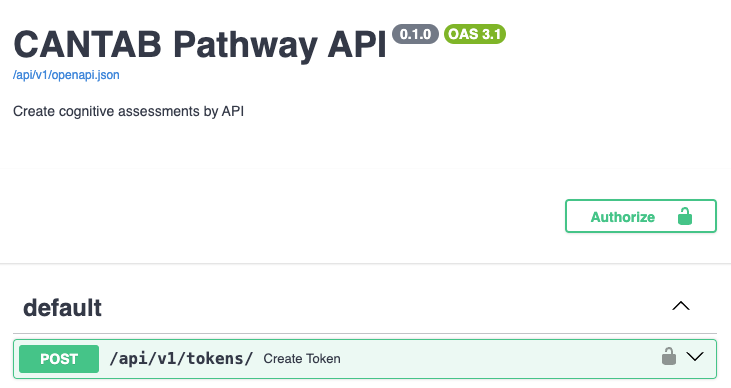
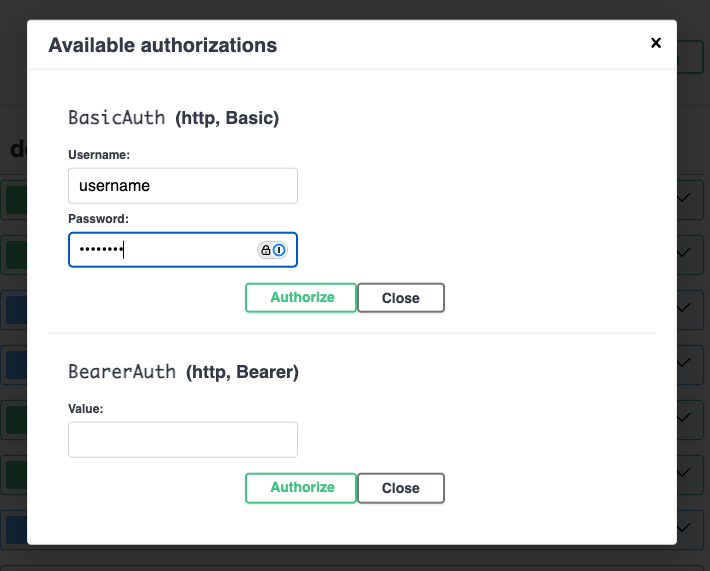
Click the "Authorize" button. Enter your username and password in the Basic Auth fields. Click "Authorize" again to save your login.
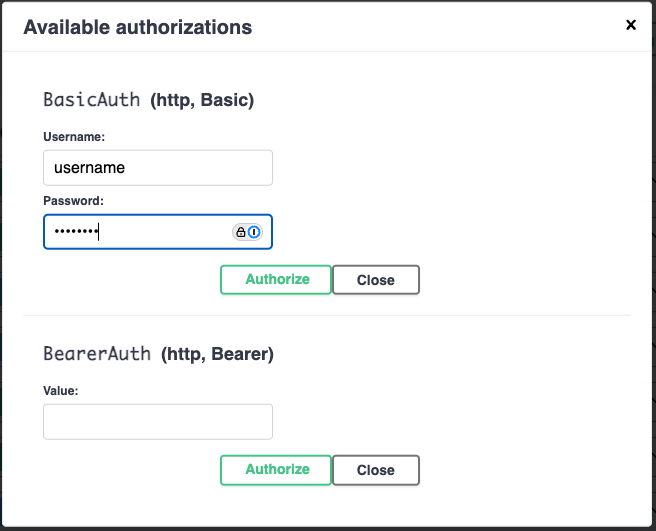
Expand the POST /api/v1/tokens endpoint section and click the
"Try it out" button. Click "Execute" to create your token.
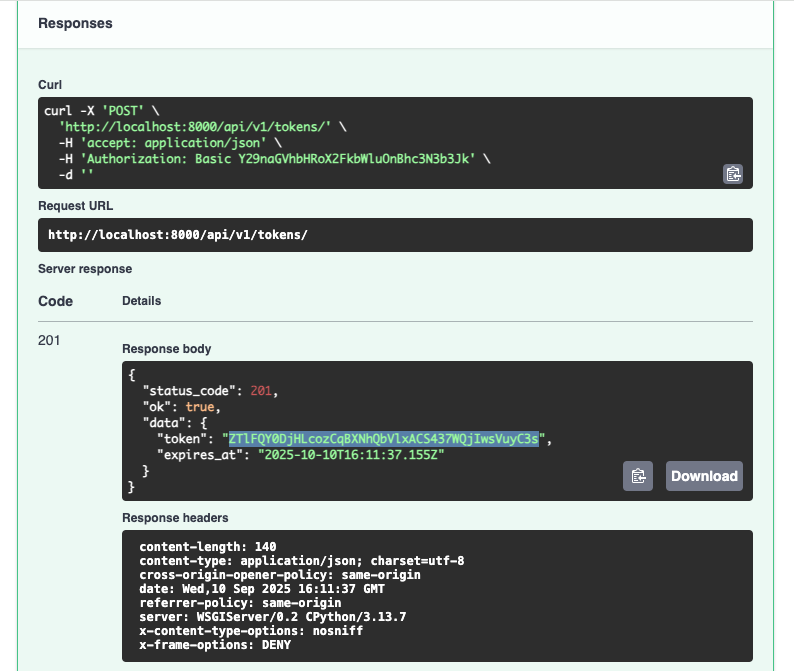
The playground will show you the request made to the server (as a
curl command) followed by the server response. Copy the
string in the token field.
Now return to the top of the page. Click the "Authorize" button and paste the token you copied into the Bearer Token field. Click "Authorize".
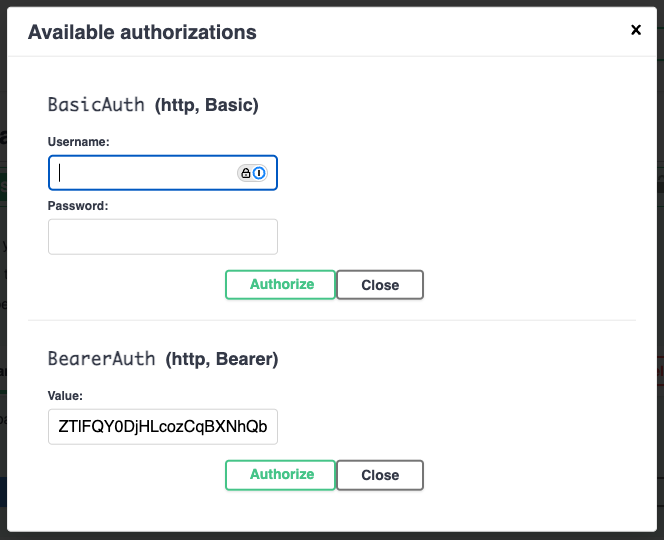
You can now make requests to all the other endpoints in the API Playground.
The basic workflow for sending an assessment is:
Let's go through each step in detail. We'll use curl to send
requests, but you can use the playground or the API client of your choice.
The Pathway API groups your test subjects / patients into "projects."
A project may be a single clinic, a geographic region, or a pilot.
At this time, you will require help from a CANTAB Pathway admin to set up new projects, but this will change in the near future.
To register a new subject, you need to know the ID of the project you want
to register them in. You should have this on hand, but if not, you can
fetch it from the GET /api/v1/projects list endpoint:
curl -X 'GET' \
  'https://eu.cantabpathway.com/api/v1/projects/' \
  -H 'accept: application/json' \
  -H 'Authorization: Bearer your-token'
{
  "status_code": 200,
  "ok": true,
  "data": [
    {
      "id": "your-project-id",
      "name": "Your Project Name",
      "organization_id": "your-organization-id",
      "webhook_url": "https://your-webhook-url.com"
    }
  ]
}
The response will contain a list of projects, scoped to your organization.
You can use the ID of the project you want to register a subject in; in
this case, it's your-project-id.
Next, you need to register the subject. We require the following information about the subject so that we can compare their results to our normative data:
You can see the full list of possible values for "level of education" under the Schemas -> SubjectData section of the API playground.
The subject's locale is used to determine the language of the assessment
when you do not specify a locale on the assessment itself.
e.g. bn-BD will deliver the assessment in Bengali.
curl -X 'POST' \
  'https://eu.cantabpathway.com/api/v1/subjects/' \
  -H 'accept: application/json' \
  -H 'Authorization: Bearer your-token' \
  -H 'Content-Type: application/json' \
  -d '{
    "project_id": "your-project-id",
    "external_id": "p00001",
    "date_of_birth": "1982-02-04",
    "gender_at_birth": "female",
    "level_of_education": "undergraduate_or_equivalent",
    "locale": "en-GB"
  }'
{
  "status_code": 201,
  "ok": true,
  "data": {
    "id": "your-subject-id",
    "project_id": "your-project-id",
    "external_id": "p00001",
    "date_of_birth": "1982-02-04",
    "gender_at_birth": "female",
    "level_of_education": "undergraduate_or_equivalent",
    "locale": "en-GB",
    "meta": {}
  }
}
You may have noticed that we specified an external_id for the
subject. This field is available for you to register subjects via your own
system of identifiers. The Pathway API will always assign a UUUD
id to the subject, but you can use the
external_id to easily map a subject to your own. Assessments
also use this pattern.
Now it's time to send your subject a CANTAB Pathway assessment! We'll start by sending a CANTAB One assessment; it's a single task that takes about 3 minutes to complete. Perfect for a getting started guide! You can see the other possibilities under the Create Assessment docs .
We will send the assessment using the
POST /api/v1/assessments endpoint. This endpoint requires
some time to set up the assessment, so it's slower than the others; it may
take 3-5 seconds to get a response.
By default, an assessment uses the subject's locale. You can
override this per assessment by including an optional
locale field in the create assessment request. The
locale must be supported for that assessment type in your
project configuration. If you omit locale, the
subject's locale is used; when that locale is not supported for
the assessment type, Pathway falls back to your project's
default locale (usually en-US).
curl -X 'POST' \
  'https://eu.cantabpathway.com/api/v1/assessments/' \
  -H 'accept: application/json' \
  -H 'Authorization: Bearer your-token' \
  -H 'Content-Type: application/json' \
  -d '{
    "subject_id": "your-subject-id",
    "external_id": "a00001",
    "assessment_type": "cantab-one"
  }'
{
  "status_code": 201,
  "ok": true,
  "data": {
    "id": "your-assessment-id",
    "subject_id": "your-subject-id",
    "external_id": "a00001",
    "assessment_type": "cantab-one",
    "web_assessment_url": "https://connect.cantab.com/subject/index.html?accessCode=someaccesscode&subject=some_uuid&visitDef=some_uuid",
    "created_at": "2025-09-10T18:30:06.310Z",
    "expires_at": "2025-10-10T18:30:06.310Z",
    "locale": "en-GB",
    "status": "in_progress",
    "started_at": null,
    "completed_at": null,
    "failure_reason": null,
    "measures": null,
    "meta": {}
  }
}
We've created the web assessment, which can be accessed at
web_assessment_url. The expires_at field is the
deadline for completion. When it's complete, the status will
change to completed, and then to report_ready,
at which point you can download the report. The measures for the task will
also be available.
Go ahead and give the assessment a try. It should only take a few minutes! For testing purposes you can do it with a mouse on a computer, but subjects should always use a mobile device.
Once it's done, the Pathway API will send a webhook to your system indicating completion. It will send a second webhook when the report is ready for download. (Your webhook URL will be specified as part of your CANTAB Pathway API setup. Talk to your CANTAB Pathway admin.)
Once this happens, the assessment state will change, which you can see by
querying the GET /api/v1/assessments/{id} endpoint.
curl -X 'GET' \
  'https://eu.cantabpathway.com/api/v1/assessments/your-assessment-id' \
  -H 'accept: application/json' \
  -H 'Authorization: Bearer your-token'
{
  "status_code": 200,
  "ok": true,
  "data": {
    "id": "your-assessment-id",
    "subject_id": "your-subject-id",
    "external_id": "a00001",
    "assessment_type": "cantab-one",
    "web_assessment_url": "https://connect.cantab.com/subject/index.html?accessCode=someaccesscode&subject=some_uuid&visitDef=some_uuid",
    "created_at": "2025-09-10T18:30:06.310Z",
    "expires_at": "2025-10-10T18:30:06.310Z",
    "status": "report_ready",
    "started_at": "2025-09-10T18:36:06.464Z",
    "completed_at": "2025-09-10T18:38:54.180Z",
    "failure_reason": null,
    "measures": {
      "DSTTC": {
        "value": 95,
        "norms": {
          "percentile": 90,
          "percentile_min": 80,
          "percentile_max": 100,
          "percentile_median": 90,
          "z_score": 1.0
        }
      }
    }
  }
}
Once the assessment is complete, the Pathway API will generate a PDF report
that can be e.g. shown to a clinician. You can download the report using the
GET /api/v1/assessments/{id}/report/download endpoint.
curl -X 'GET' \
  'https://eu.cantabpathway.com/api/v1/assessments/your-assessment-id/report/download' \
  -H 'accept: */*' \
  -H 'Authorization: Bearer your-token'
  --output /local/path/to/your/report.pdf
This command will save the report to your local machine. It should look something like this:
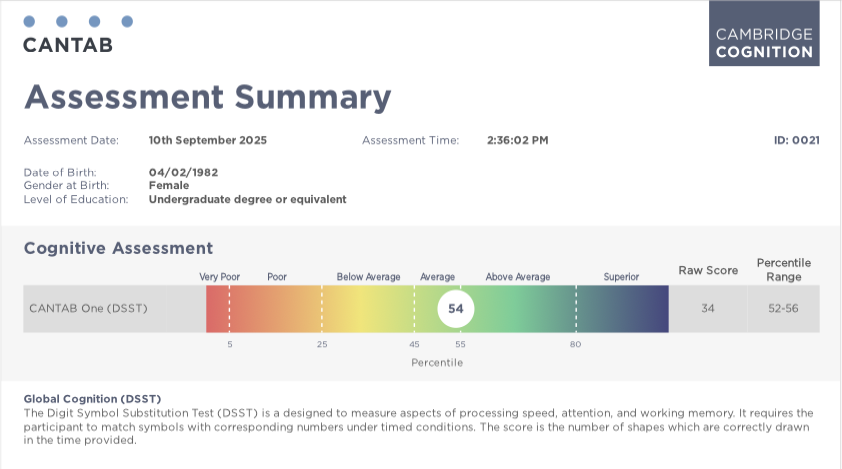
That's it! You've successfully completed your first assessment. You can now send additional assessments to the same subject, or to other subjects in the same project.
This section describes the response and webhook formats, error codes, rate limits, and other functional details of using the CANTAB Pathway API.
The OpenAPI specification for the CANTAB Pathway API is available here.
You can use this specification to generate API clients in your preferred language.
This documentation is a plain HTML page that can be easily referenced by LLMs when building API clients. We recommend including this document and the OpenAPI specification (linked above) to your LLM context when using them to build your application.
The CANTAB Pathway API returns JSON responses. Your requests should set the
Accept header to application/json except where
otherwise specified.
Success responses have the following format:
{
  "status_code": 200,
  "ok": true,
  "data": {
    "your": "data"
  }
}
Error responses have the following format:
{
  "status_code": 400,
  "ok": false,
  "error": "BAD_REQUEST",
  "data": {
    "reason": "The request is invalid"
  }
}
Error responses have a status_code between 400 and 599, and an
error value that indicates the type of error. The
data object will usually contain a reason field
that provides more information about the error. The list of possible
error values and their associated status codes are listed below
in the Error Codes section.
Validation errors will return multiple reasons in the
data["reasons"] field, indicating the type and location of each
error. For example, submitting a request to the "create user" endpoint with
only a too-short username will result in:
{
  "status_code": 422,
  "ok": false,
  "data": {
    "reasons": [
      {
        "type": "string_too_short",
        "loc": [
          "body",
          "data",
          "username"
        ],
        "msg": "String should have at least 3 characters",
        "ctx": {
          "min_length": 3
        }
      },
      {
        "type": "missing",
        "loc": [
          "body",
          "data",
          "email"
        ],
        "msg": "Field required"
      },
      {
        "type": "missing",
        "loc": [
          "body",
          "data",
          "role"
        ],
        "msg": "Field required"
      }
    ]
  },
  "error": "VALIDATION_ERROR"
}
The following error codes are possible:
List endpoints support pagination using limit and
offset query parameters. If not provided, a default page size
is applied.
curl -X 'GET' \
  'https://eu.cantabpathway.com/api/v1/projects?limit=10&offset=0' \
  -H 'accept: application/json' \
  -H 'Authorization: Bearer your-token'
{
  "status_code": 200,
  "ok": true,
  "data": [
    { "id": "...", "name": "...", "organization_id": "...", "webhook_url": "..." }
  ],
  "total": 42,
  "per_page": 10
}
The response contains the following fields:
Some resources support attaching arbitrary metadata via a
meta object. This metadata is returned on detail and list
responses and can be used to filter list endpoints.
For example, let's say your subjects have two application-specific cohorts that you'd like to search by on the Pathway API later. These cohorts will be called "cohort-1" and "cohort-2". You could register a new subject on the Pathway API that tracks their cohort membership as follows:
curl -X 'POST' \
  'https://eu.cantabpathway.com/api/v1/subjects/' \
  -H 'accept: application/json' \
  -H 'Authorization: Bearer your-token' \
  -H 'Content-Type: application/json' \
  -d '{
    "project_id": "your-project-id",
    "external_id": "subject-id-1",
    <... other subject fields ...>
    "meta": { "cohort": "cohort-1" }
  }'
{
  "status_code": 201,
  "ok": true,
  "data": {
    "id": "subject-id-1",
    "project_id": "your-project-id",
    "external_id": "subject-id-1",
    <... other subject fields ...>
    "meta": { "cohort": "cohort-1" }
  }
}
You can search for subjects by their cohort membership using the
meta query parameter. (This is covered in the next section.)
Both Subject and SubjectAssessment resources
support meta.
List endpoints accept exact, case-sensitive query parameters for specific fields. For example:
/api/v1/subjects?external_id=SUB-123
/api/v1/projects?name=My%20Project&organization_id=...
For plain-text, non-identifier fields like name,
username, or email, the value you supply will be
matched as a case-insensitive substring. All other filters perform exact
matches.
To filter by metadata, use the meta query parameter with
path:value syntax, where . separates nested keys
and : separates the path from the value.
/api/v1/subjects?meta=study.arm:2 matches subjects with
{"study": {"arm": 2}}.
/api/v1/assessments?meta=batch:alpha matches assessments with
{"batch": "alpha"}.
When you are first assigned your CANTAB Pathway API key, you will be granted an Organization and an "organization admin" user. Your organization is the top-level container for everything in your CANTAB Pathway API account.
Before you can create subjects and assessments, you must have a Project to put them in. A Project is a collection of subjects that are related in some way; for example, they may all be part of the same pilot or clinical site.
An organization admin can create projects in their organization using the Create Project endpoint. They can also create users that are "scoped" to only see details and create subjects within specific projects.
To create a project-specific user, use the create user endpoint with the api_user role:
curl -X 'POST' \
  'https://eu.cantabpathway.com/api/v1/users/' \
  -H 'accept: application/json' \
  -H 'Authorization: Bearer your-token' \
  -H 'Content-Type: application/json' \
  -d '{
    "username": "project-admin",
    "email": "project-admin@example.com",
    "organization_id": "your-organization-id",
    "role": "api_user"
  }'
You can now assign this new user to a project using the Add User to Project endpoint:
curl -X 'POST' \
  'https://eu.cantabpathway.com/api/v1/projects/{project_id}/users/' \
  -H 'accept: application/json' \
  -H 'Authorization: Bearer your-token' \
  -H 'Content-Type: application/json' \
  -d '{
    "username": "project-admin",
    "role": "member"
  }'
This will create a user that can create subjects and assessments in the given project. You can assign a user to multiple projects.
Set the project membership role to "admin" to create a project admin. They can do everything a member can plus update the project, view other project users, and run "trick" helper endpoints on test projects. See Simulating Assessment Status Changes for more information on tricks.
The CANTAB Pathway API will send webhooks to your systems upon completion of certain events.
The webhook URL is configured per-project; you can see what it is by
querying the GET /api/v1/projects/{id} endpoint.
You may configure a secret token to be sent along with each webhook.
This secret can be updated via the PATCH /api/v1/projects/{id}
endpoint.
Your webhook secret is sent as a header in each webhook request with the key
X-Pathway-Webhook-Secret.
Webhooks are sent in JSON format. They look like this:
{
  "webhook_type": "assessment_completed",
  "entity_type": "assessment",
  "project_id": "your-project-id",
  "organization_id": "your-organization-id",
  "data": {
    "assessment_id": "your-assessment-id"
    ... rest of assessment body
  }
}
data will generally contain the same data as retrieving the
related entity via its detail endpoint. However, if that detail contains PHI
or other sensitive information, it will not be included in the webhook body.
You must retrieve the entity via its related endpoint to access sensitive
data.
Webhooks are currently sent for the following events:
assessment_completed):
Sent when the subject completes the assessment, but before their measures
report is generated.
assessment_report_ready): Sent when the subject's measures
report is generated.
assessment_expired):
Sent when an in-progress assessment passes its expires_at
time. Expiry is processed on a schedule (approximately hourly), not at the
exact second of the deadline. The webhook body matches the assessment
fields returned by the API (including expires_at).
assessment_failed):
Sent when Pathway marks an assessment as failed for a specific,
expected failure mode (for example, when norms required to score the
assessment are missing). The webhook body includes a
failure_reason field (e.g. missing_norms), and
consumers should use this field to determine how to handle the failure.
Subjects complete assessments by using the CANTAB web application hosted
at the web_assessment_url field of the assessment
response.
You may use this URL to deliver the assessment directly to the subject in a web browser, or embed it in your own client application.
Once an assessment has completed, expired, or otherwise terminated,
rendering the web_assessment_url will present a short message to
the user indicating the outcome. You should generally not render the
web_assessment_url once the assessment is no longer in_progress.
We have SDKs available to make it easy to deliver assessments in mobile and web applications. See the CANTAB Pathway Bitbucket project for more details.
If you want to simply send the subject directly to the assessment URL, you can still have them redirect to your website when the assessment is complete.
You can do this by adding a redirect URL to the assessment URL as a query parameter.
[web_assessment_url]&redirectUrl=https://yourwebsite.com/assessment-complete
The subject will be redirected to the redirect URL when the assessment is complete. Your redirect URL will have query parameters appended to it which communicate the outcomes of the assessment.
For the purposes of using the CANTAB Pathway API, you should only use the
visitExecutionOutcome query parameter. It will be either
success or error.
success indicates that the assessment was completed
successfully. The only possible way to get error is by
loading an assessment URL in which all tasks have already been completed.
In this way, you can send a subject to CANTAB to complete the assessment, and redirect them back to your website when they are done. This low-effort mechanism can be helpful for quick test integrations.
For cantab-one assessments only, you may supply an
optional variant object when creating the assessment.
It is not accepted on updates. The shape is variant: {
"instructions_mode": "required" | "optional" | "none" }. If
you omit variant, instructions_mode
defaults to required. Other assessment types must not
include variant; doing so returns a validation error.
When using CANTAB Pathway SDKs, you may specify whether instructions are shown when the assessment is launched. See the documentation for those SDKs for more details.
If you use the web_assessment_url directly in a browser
(for example in an email), you can append a
showInstructions query parameter to request whether task
instructions are shown. Omitting the parameter is equivalent to showing
instructions. Use 1 or true to show
instructions, or 0 or false to hide them.
What is allowed still depends on the assessment's
instructions_mode; incompatible combinations are rejected
when the subject opens the link.
Note that if you specify an instruction_mode at assessment
creation time and supply a conflicting value for showInstructions
when the assessment is launched, the web assessment url will return
a 400 error and render no content.
CANTAB Pathway assessments are split into individual exercises called "tasks." CANTAB One is a single task; all other assessments are composed of three different tasks.
To get the most accurate results, you should do your best to ensure that the subject completes the entire assessment in one sitting. However, if they cannot do this, they are able to return to the assessment later and resume it from the most recent incomplete task in the assessment.
This means if they complete the first task and leave before the second is complete, they will restart at the second task when they revisit the assessment URL.
Upon revisiting the URL, they will be told that their previous session was incomplete, and that they will be resuming from the most recently incomplete task.
The assessment's status field will remain
in_progress until the subject has completed the entire
assessment.
When testing your integration, it can be tiresome to manually
complete a cognitive assessment each time you want to test an
assessment lifecycle event. You can make this easier by using the
tricks endpoint.
You can shortcut the normal workflow by using the POST
/tricks/assessments/{assessment_id} endpoint. This endpoint
simulates downstream events without needing to run the actual
cognitive assessment.
Tricks are only available for projects whose
project_type is test. They can be triggered by
Coghealth admins, organization admins, or project admins on the relevant
project. Attempts to run tricks on active projects will return
403 Forbidden.
The request body accepts a single field:
{
  "action": "complete_assessment_high"
}
The supported actions are:
complete_assessment_high: Mark an in-progress assessment as
completed with synthetic high-performing measures.
complete_assessment_low: Same as above but with
low-performing measures.
complete_assessment_mixed: Generate a mix of high and low
measures for the configured assessment tasks.
create_report: Transition a completed assessment to
report_ready. A placeholder PDF will be made available for
download. (It will not actually contain the reported measures.)
expire_assessment: Fail an in-progress assessment with the
expired failure reason.
fail_assessment: Fail an in-progress assessment with the
technical_issue failure reason.
Webhooks for lifecycle events will fire as usual when using the tricks endpoint.
If you prefer to trigger lifecycle transitions manually rather than using the Tricks API, you can use the assessment test links available in test projects.
Assessments in test projects return a test link in the
web_assessment_url field. Opening this link displays a
small test page with buttons for the allowed lifecycle actions.
These actions mirror the tricks behavior and will emit webhooks as
usual. Append ?doAssessment to immediately redirect to the
real assessment.
By default, completed assessment reports display only the CANTAB logo. You can add your own branding by creating report variants for a project.
A report variant is identified by a string key that is
unique within a project. Create one with
POST /api/v1/projects/{project_id}/report-variants,
supplying the desired key in the request body.
Upload a logo image with
POST /api/v1/projects/{project_id}/report-variants/{key}/logo.
The image must have a 3 : 1 aspect ratio and be at
least 160 px tall. Maximum file size is 50 MB. The
logo is processed asynchronously after upload; it will appear in
the report header alongside the CANTAB logo.
Set default_report_variant_key when updating a project
so that every new assessment in that project automatically uses the
variant. This field is not currently applied when creating a project.
To use a different variant for a single assessment, pass
report_variant_key in the
POST /api/v1/assessments request. This overrides the
project default for that assessment only. Omitting the field falls
back to the project default (if one is set).
Use the GET and DELETE endpoints under
/api/v1/projects/{project_id}/report-variants to list,
inspect, or remove variants. Deleting a variant clears the project
default and any in-progress assessment references that point to it;
already-generated reports are not affected.
Completed assessments provide a number of measures that can be used to interpret the subject's performance.
The measures are provided in the measures field of the
assessment response. For example:
"measures": [
  {
    "code": "DSTTC",
    "value": "42",
    "norms": {
      "percentile": 92,
      "percentile_min": 92,
      "percentile_max": 92,
      "percentile_median": 92,
      "z_score": "1.4050715603096327"
    }
  }
]
Providing the test link to one of [our SDKs](https://bitbucket.org/camcog/workspace/repositories/?project=%7B927d7a54-d6c1-40ef-be3d-8f0e8022fb8f%7D) will trigger the expected lifecycle events for your app.
The assessment results include a norms object that relates a
participant's score (value) on a cognitive measure to a healthy population,
adjusted for their demographics.
The primary metric for understanding performance relative to peers is the
percentile. A percentile score of 50 indicates average
performance for that demographic group (based on age, sex, and education).
If a participant's score is 90, they performed better than 90% of the
normative sample; conversely, a score of 20 means they performed better than
only 20% of the sample.
The z_score describes how many standard deviations the score is
above or below the mean. For example, a z-score of 1.5 means the
participant's score is 1.5 standard deviations above the mean of the
normative population for their specific demographic group.
The percentile and z_score should be all you need
to interpret a participant's performance relative to the norms.
For the curious, the fields percentile_min and
percentile_max define the range of percentiles associated with
the participant’s specific raw score (value). This range arises primarily
because multiple individuals in the normative dataset may achieve the same
raw score. (These are known as "tied scores".) The
percentile_median gives the midpoint of this specific range.
CANTAB uses a Bayesian framework for generating normative data. This approach addresses common challenges in cognitive testing, such as non-normal distributions (e.g., error counts often having an excess of zeros or ones) and the need to incorporate the effects of key demographic variables like age, sex, and education.
Specifically, we use Bayesian Generalised Linear Models (GLMs), drawing from appropriate likelihood distributions to accurately model the outcome measures.
The core process involves using Markov Chain Monte Carlo (MCMC) algorithms to generate a large synthetic dataset (~20,000 posterior samples) from the posterior predictive distributions of the best-fitting GLM. These samples are used to derive performance estimates and percentiles, incorporating variability while excluding extreme outliers.
The fields returned in the norms response reflect these
statistical outputs: the z_score is derived from standardized
residuals, and the percentile represents the cumulative
percentage.
The API also provides percentile_min and
percentile_max to define the full percentile range
corresponding to the observed test score, particularly relevant when dealing
with tied scores. The final reported percentile (and
percentile_median) is calculated by selecting the middle point
of this percentile range, which is the recommended practice for handling
tied scores in normative comparison.
For a full explanation of the statistical methodology, please refer to Generating normative data from web-based administration of the Cambridge Neuropsychological Test Automated Battery using a Bayesian framework (2024)
The CANTAB Pathway API supports three options for sex at birth: male, female, and unspecified.
Selecting "male" or "female" applies sex-specific norms when interpreting performance.
Selecting "unspecified" applies sex-agnostic norms. Use this when the participant has differences of sex development, declined to report their sex, or you do not know it.